


Help
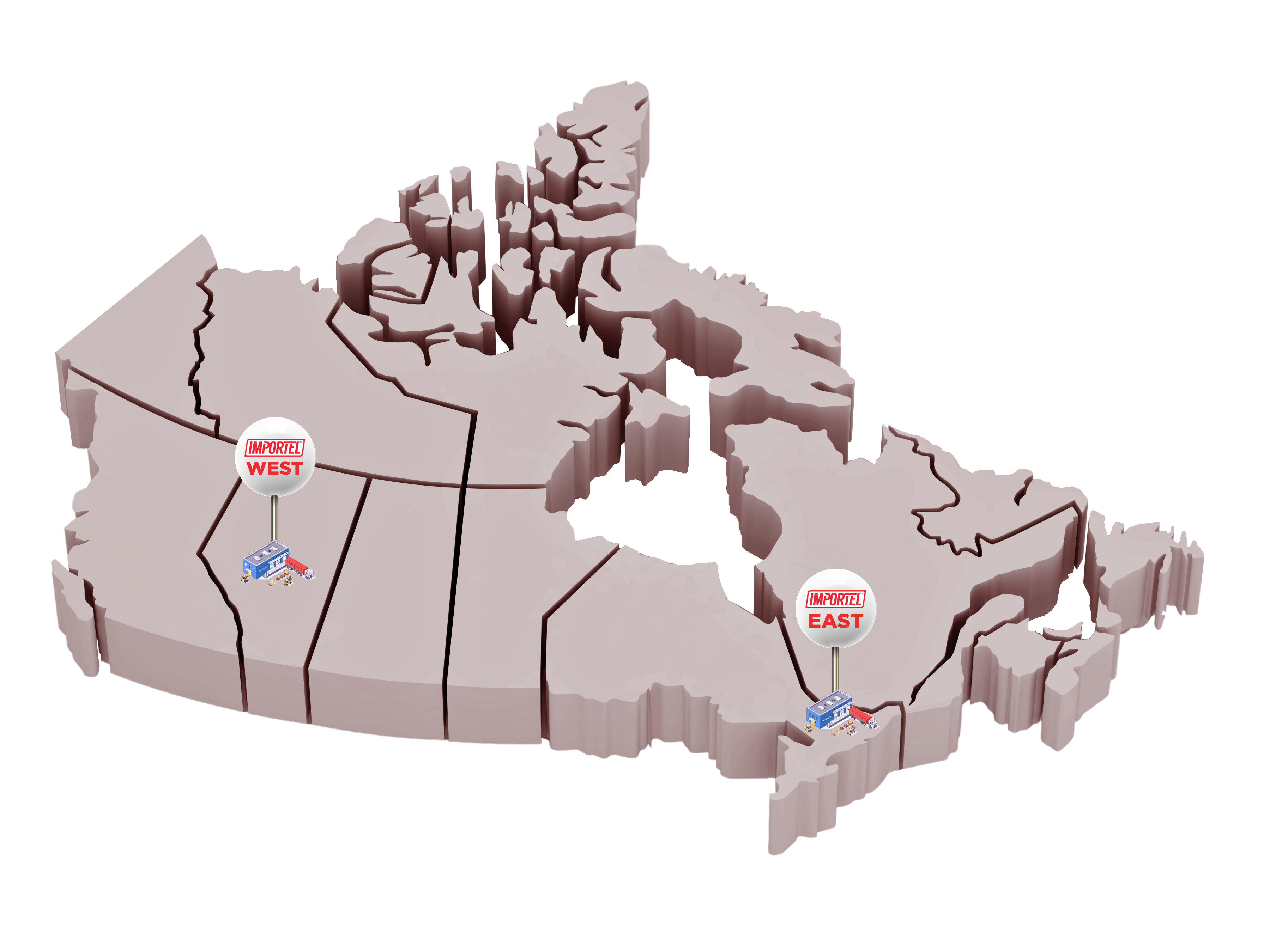
Importel's Eastern and Western Warehouses:
All orders placed on the Eastern Website will be shipped from Toronto, Ontario.
All orders placed on the Western Website will be shipped from Nisku, Alberta.
You will not be able to order products from the Nisku Warehouse on the Eastern Website.
You will not be able to order products from the Toronto Warehouse on the Western Website.
You will not be able to mix items from both warehouses on a single web order.
The Importel Freight Program applies to each individual warehouse.
Freight programs are located on our shipping page. They are confidential documents exclusively for approved users who are logged in. The link is located on the navigation bar at the bottom of the page.
Troubleshooting Website Issues:
At times we encounter issues with the website such as missing products, incorrect images, or the inability to utilize the keyword search. Once the proper patches and/or fixes have been put in place, you should not experience these issues anymore - but sometimes users may still experience problems if they have not cleared their browser's cache.
To resolve these issues, we kindly ask that you clear your browser's cache and restart your browser. Please find instructions below for the most commonly used browsers:
Google Chrome:
-
1. Open Chrome and press Ctrl + Shift + Delete (Windows) or Command + Shift + Delete (Mac)
2. Make sure Cached Images and Files is checked (deselect anything you don’t want to delete)
3. Click Delete From This Device
4. Restart Chrome
Microsoft Edge:
-
1. Open Edge and press Ctrl + Shift + Delete
2. Make sure Cached Images and Files is checked (deselect anything you don’t want to delete)
3. Click Clear Now
4. Restart Edge
Mozilla Firefox:
-
1. Open the menu (3 horizontal bars in the top-right corner)
2. Go to Settings > Privacy & Security
3. Under Cookies and Site Data, click Clear Data
4. Make sure Temporary Cached Files and Pages is checked (deselect anything you don’t want to delete)
5. Click Clear
6. Restart Firefox
Safari (Mac):
- 1. Open Safari
2. Click Safari > Settings (or Preferences) > Privacy
3. Select Manage Website Data
4. Click Remove All
5. Restart Safari
Safari (iPhone):
- 1. Open Settings
2. Tap Safari
3. Tap Clear History and Website Data
4. Confirm
5. Restart Safari
If any issues persist after completing these steps, please contact Alex directly at [email protected] or (437) 900-8040.
Finding Products using Vehicle Fit Guides & Keyword Search:
Many of our manufacturers have vehicle fit guides or vehicle application guides on their websites that will assist you in finding exactly what you're looking for. For example, if you're looking for dash kits, radio harnesses or antenna adapters Metra Electronics' website has a vehicle search guide on the main page. Once you enter your vehicle's year, make, model and sub-model you can view all Metra products compatible with that vehicle (in addition to Axxess, iBeam, Install Bay and more). It is highly recommended that you download their application guide in Excel format; it's an industry-leading tool containing even more vehicle information and is updated regularly.
The Axxess and Crux Interfacing websites also have similar application guides with a specific focus on a wide array of OEM integration solutions.
Looking for HID or LED headlight conversions? Check out the Lumens HPL website. To find all parts necessary for a complete installation, use the application guide on their home page. Enter your vehicle's year, make and model, then click search. Select your LED or HID bulb application on the left-hand side, then choose your product. Once on the selected product page you will see all parts required for your installation under the "package contents" heading. Wiring diagrams are also available linked below the package contents heading (if available).
Looking for remote start solutions? The Fortin and iDatalink websites both feature extremely robust application guides. If you're looking to integrate SiriusXM satellite radio into your vehicle's OEM system please visit VAIS Technology's website.
Please visit our Manufacturer Sites section for links to all of our manufacturer's websites. Many of them have application guides to assist you in finding products for your vehicle. Once you've found what you're looking for simply return to our website, use our keyword search to locate your products and order them direct from importel.com!
For the best results using our keyword search simply enter the manufacturer's exact part number. We've done our best to match every one of our part numbers to the manufacturer's part number. Always remember to enter the dashes and dots, if there is a space in the manufacturer's part number we have replaced it with a dash. You can also search using general terms; anything related to what you're looking for should work. Once your search term is entered you can further narrow your results by specific category, brand, or status. If your part is still not found try using one of the methods below or call us toll-free at 1 (800) 363-3413.
Finding Products using Browse by Brand:
Use the 'Browse by Brand' feature located on the left-hand side of the website directly below the 'Categories' section. Clicking any one of the selections will reveal every product we feature from that specific manufacturer. Items are displayed in a categorized list format with alphabetically sorted headings for easy browsing. You can also narrow your results by specific category, price, and even sort by availability. If the part you're looking for is not listed please give us a call toll-free at 1 (800) 363-3413 as it may be a special order product or not currently listed on our website.
Finding Products using Categories:
Our categories section is fairly simple to navigate but is a constant work in progress. We update the categories section on a daily basis to maximize its efficiency and make it easier for you to find what you're looking for. If you can't find a product in the categories section please try one of the methods above or give us a call toll-free at 1 (800) 363-3413.
 All prices displayed in Canadian Dollars (CAD)